Designing and Implementing Event & Conversion Tracking in GA4
Modern web analytics is not just about counting page views – it’s about understanding how users interact with your site. Google Analytics (GA) is a widely used web analytics service that tracks and reports website and app traffic. Its latest iteration, GA4, is entirely event‑based: every user action, from page views to purchases, is captured as an event. To measure success, you mark certain events as conversions (now called key events). Tracking these interactions helps you optimize content, marketing and user experience. This article explains how to plan and implement event and conversion tracking in GA4, drawing on insights from authoritative sources and Google’s own documentation.
Events vs. Conversions in GA4
An event in GA4 is any user action on your website or app – clicking a link, scrolling a page, submitting a form. GA4 replaces Universal Analytics’ rigid category/action/label fields with a flexible, parameter‑driven model. Events fall into four categories:
- Automatically collected events: triggered by default (e.g.,
first_visit,session_start,user_engagement). - Enhanced measurement events: optional auto‑tracked interactions such as scrolls, outbound clicks and video engagement.
- Recommended events: suggested by Google for specific business types (e‑commerce, gaming, etc.).
- Custom events: defined by you to track specific actions (e.g., newsletter sign‑ups, button clicks).
A conversion in GA4 (renamed a key event) is simply an event you flag as particularly important. Marking events as conversions allows GA4 to count them separately and enables sharing with Google Ads. Tracking events is essential to understand how users interact with your site and to improve content and campaigns.
Planning Your Tracking Strategy
Before you start toggling settings, plan which interactions matter to your business:
- Scroll depth: Identify how far users scroll on key pages; this informs content layout.
- Button/link clicks: Track CTAs, navigation links and downloads to see what drives engagement.
- Form submissions: Measure leads generated via contact or sign‑up forms.
- Video views: Understand whether visitors watch embedded videos and for how long.
Create a naming convention for your events (e.g., form_submit, cta_click, video_play) and decide which parameters you need (e.g., form_id, button_text, video_duration). This clarity ensures your reports are easy to interpret later. Remember that in GA4 you no longer set up goals separately; setting up goals in GA4 equates to flagging events as conversions.
Enabling and Configuring Enhanced Measurement
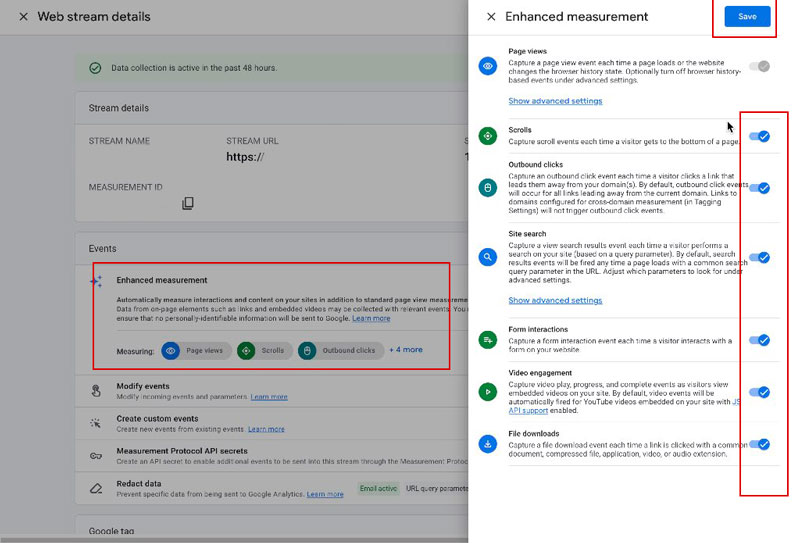
GA4 can automatically track common interactions via Enhanced Measurement. To enable it:
- Go to Admin → Data Streams and open your web data stream.
- Under Enhanced Measurement, toggle on events like Scroll, Outbound clicks, Site search, Video engagement and File downloads.
- Save your settings.
This built‑in feature reduces the need for custom code for simple events.
Creating Custom Events
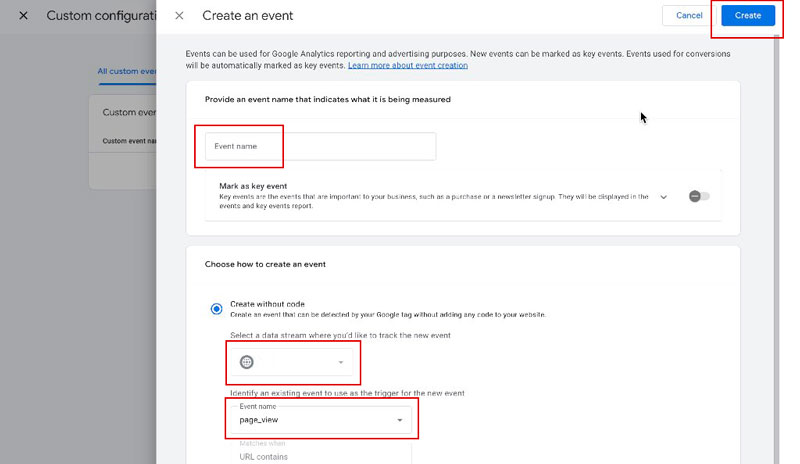
Not all interactions are covered by enhanced measurement. You can create custom events directly in GA4 without touching your site’s code:
- In GA4, go to Admin → Data display → Events.
- Click Create event.
- Name your event (e.g.,
form_submit) and specify the matching conditions. You can base it on an existing event (likepage_view) and add conditions such aspage_location contains thank-you. - Save the event.
This process mirrors the steps described in Google’s key event tutorial. Once your custom event appears in reports, you can mark it as a conversion.
Implementing Event Tracking via GTM or Code
For more complex interactions (e.g., button clicks or video plays not captured by enhanced measurement), you need to send events through Google Tag Manager (GTM) or directly with the gtag.js API.
Using Google Tag Manager
- In GTM, create a new tag of type Google Analytics: GA4 Event.
- Enter your GA4 Measurement ID and specify an Event Name (e.g.,
cta_click). - Add Event Parameters to capture details (e.g.,
button_text,page_path). - Create a trigger (e.g., click on a CSS selector) to fire the tag.
- Preview and debug your container, then publish.
Using gtag.js
If you’re not using GTM, you can call GA4 events directly from your site’s code:
<script>
gtag('event', 'video_play', {
  'video_title': 'Product Demo',
  'video_duration': '2:34',
  'engagement_time_msec': 5000
});
</script>
This snippet sends a video_play event with parameters to GA4. It follows the principle that everything in GA4 is an event.
Marking Events as Conversions
After events are being recorded, decide which ones represent meaningful outcomes and mark them as conversions:
- In GA4, navigate to Admin → Conversions.
- Click New conversion event.
- Enter the exact name of the event (e.g.,
form_submitorpurchase). - Click Save. The event is now a conversion and will appear in the Conversions report.
This simple toggle replaces the old goal setup process and aligns with the re‑naming of conversions to key events. Conversions represent the proportion of visitors who complete a desired action, a concept from conversion marketing where marketers aim to turn visitors into customers.
Testing and Debugging
To ensure your events fire correctly:
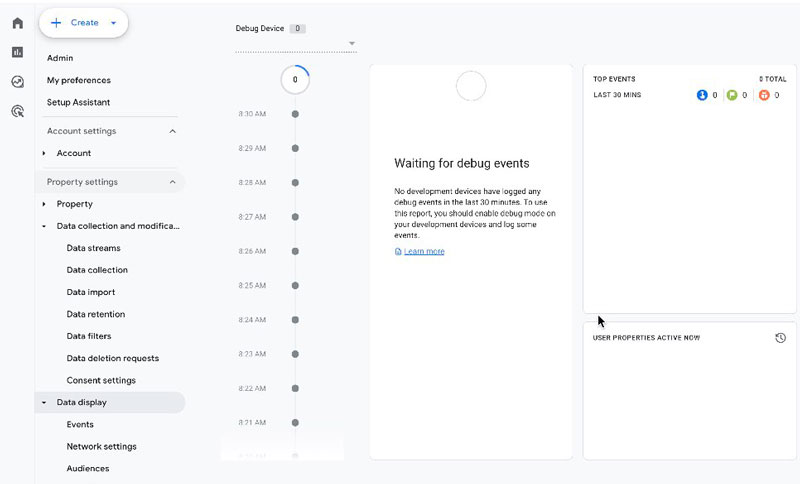
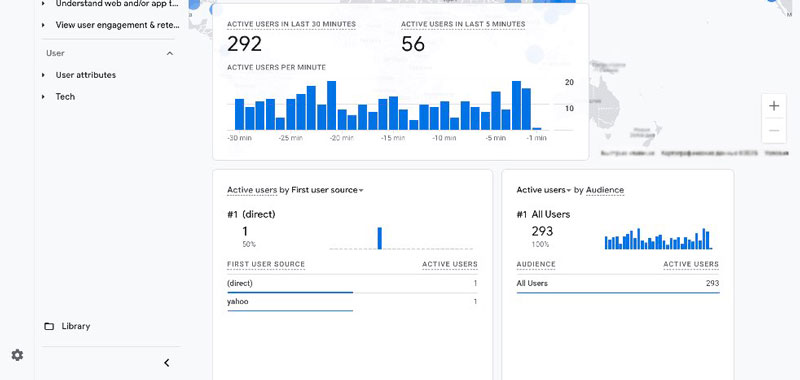
- DebugView: In GA4, go to Admin → DebugView (or use the Realtime report). With the GA Debug extension enabled (or by sending events in developer mode), you can see events appear almost instantly as you trigger them on your site.
- GTM Preview: In GTM, use the Preview mode to simulate event triggers and verify the payload sent to GA4.
Look for your custom events and check parameters. Troubleshoot by adjusting tag triggers or conditions. Analytics experts recommend double‑checking events via DebugView before marking them as conversions to avoid polluting your data.
Analyzing Conversions and Events
Once events and conversions are flowing, you need to interpret the data:
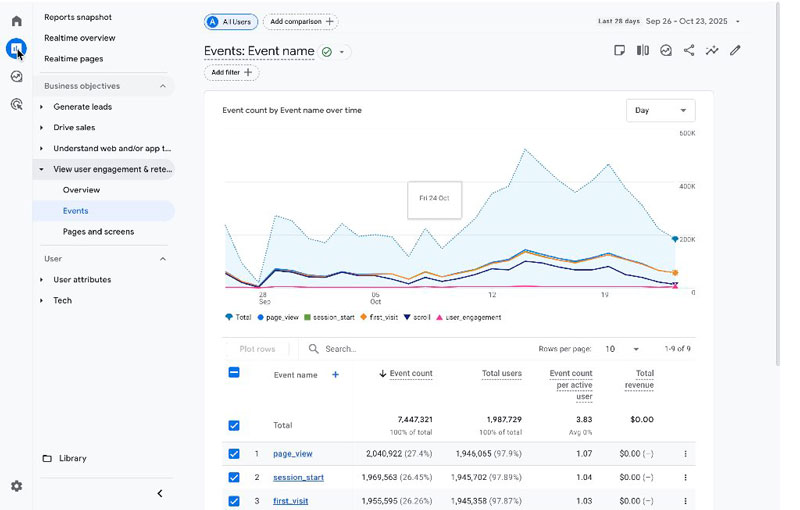
- Events report: Go to Reports → Engagement → Events to see event frequency, user counts and event value.
- Conversions report: Navigate to Engagement → Conversions to view conversion counts, rates and revenue metrics.
- Explorations: Build custom explorations (e.g., funnel or path analysis) to see sequences of events leading to conversions.
- Segment users: Create segments based on events (e.g., users who watched a video) to compare behaviours.
By customizing reports, you can include metrics like session conversion rate or user conversion rate – just as suggested in many GA4 tutorials. This helps evaluate how different traffic channels perform in driving conversions. Conversion tracking is a core part of web analytics; as web analytics aims to measure, collect and analyze web data to optimize usage, converting those interactions into business outcomes is the ultimate goal.
That channel-level breakdown only works if campaigns are consistently tagged. UTM parameter setup is the prerequisite: without source, medium, and campaign values in place, GA4’s acquisition reports lump paid and organic together and segment comparisons become meaningless.
Best Practices and Tips
- Standardize naming: Use clear, consistent event names and parameter keys. Follow Google’s recommended naming conventions when possible.
- Start simple: Begin with automatically collected and enhanced measurement events; add custom events for key interactions only.
- Document everything: Keep a tracking plan with event names, parameters and conversion flags to avoid confusion later.
- Respect privacy: Ensure your tracking complies with GDPR and local data‑protection laws; configure consent mode as needed.
- Monitor regularly: Check DebugView after changes and review conversion data weekly to spot anomalies.
Remember: GA4 conversions are just events you choose to highlight. With a solid plan and these steps, you can implement event tracking and conversion tracking effectively – covering everything from automatic scroll tracking to custom form submissions – and set yourself up for deeper insights.
The destination matters too. Event tracking shows what users do; landing page structure determines whether the page gives them a reason to act. Both layers have to work together for conversion data to be actionable.
Conclusion
Event‑based tracking in GA4 gives you granular insight into user behaviour. By enabling enhanced measurement, creating custom events, deploying events through GTM or gtag.js, marking important actions as conversions and testing thoroughly, you build a comprehensive measurement system. This empowers you to optimize your site, improve marketing and drive better business outcomes.